
1.3 Import XML from an HTTP URL into SQL Server
This section explains how to import XML from a HTTP (Web) URL into SQL Server using Exult.
- Start up Exult SQL Server. Click next on the The Welcome Screen.
- The Trial Information Screen provides information about the limitations of the trial version. Appears only in the trial version of Exult for SQL Server.
-
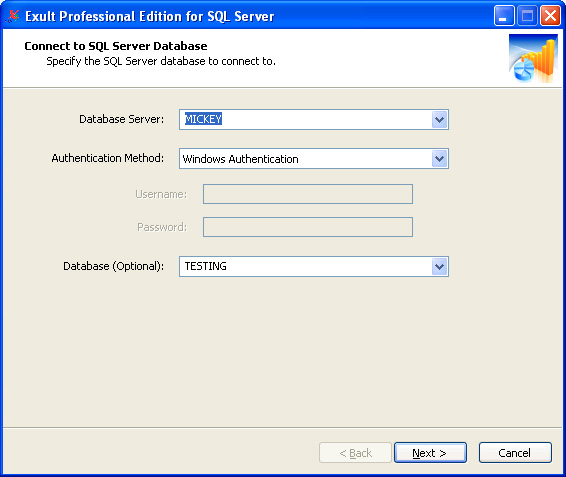
Enter the database connection parameters on The Database Connection Screen. It requests the information needed to connect to
an SQL Server database. This includes the location of the database
server, the type of the authentication used (Windows Authentication or
SQL Server Authentication), user name and password to connect (for SQL
Server Authentication), and optionally, the database to connect to.
-
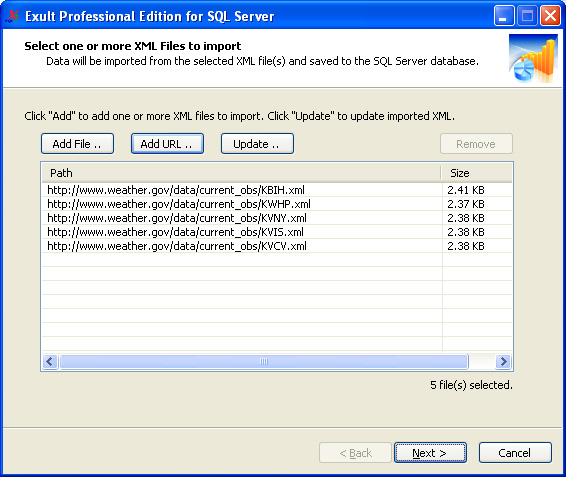
Click Add URL on the XML File Selection Screen.
-
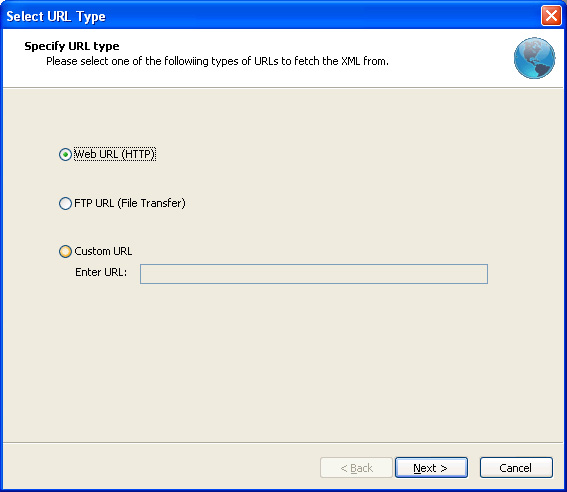
Select the URL type in the Add URL screen.
-
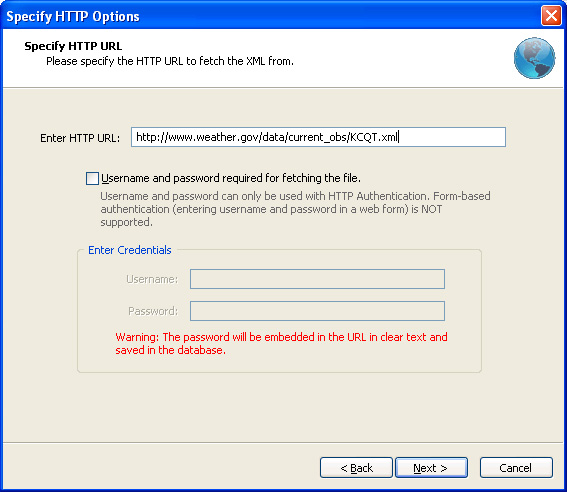
Enter the parameters for a HTTP URL.
-
Or, if you selected FTP, enter the parameters for an FTP URL.
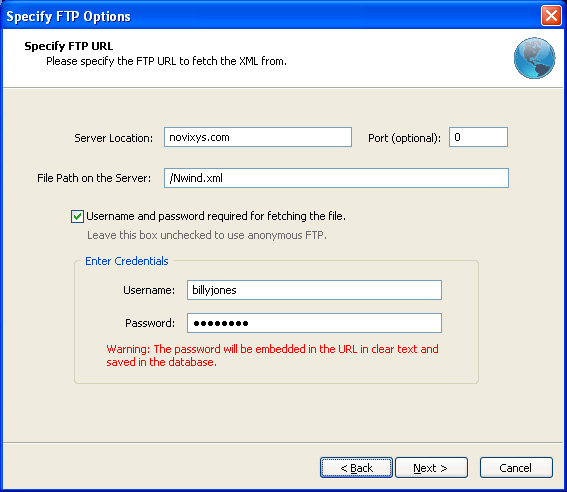
- Clicking Next downloads the file from the URL.
-
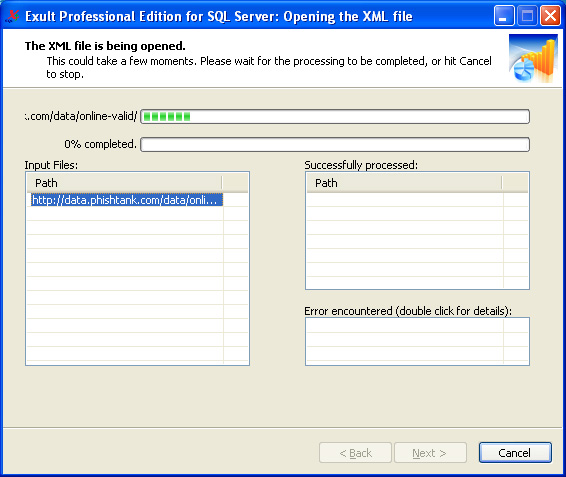
The XML Import Progress Screen shows the progress of the XML
import process.
-
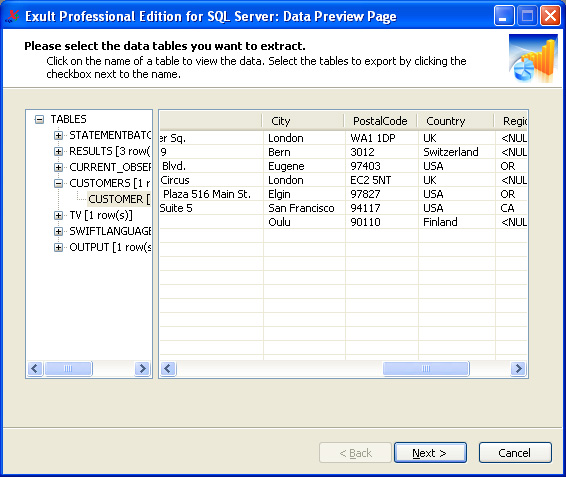
The Data Preview Screen shows the tables and the data imported
by the XML import.
- And that is how easy it is to import XML into SQL Server using Exult. The Finish Screen completes the process.
Argon DataViz
Create Pivot Tables and Pivot Charts from Large Datasets.
Swift XML Converter
Query & extract XML data into Microsoft Excel (XLS), Microsoft Access (MDB or ACCDB), or CSV.
Exult Standard
Convert XML into Microsoft Excel (XLS), Microsoft Access (MDB or ACCDB), or CSV.
Exult MySQL
Import XML data into automatically created MySQL tables.